
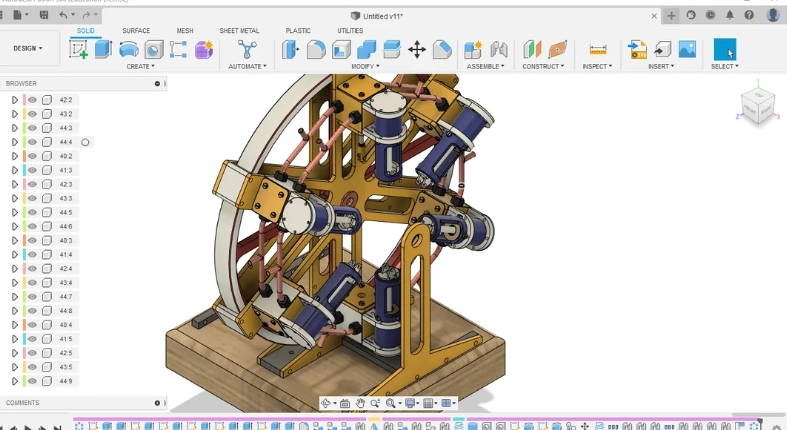
Is Fusion 360 Mac Performance Comparable To Windows On Apple Silicon
Fusion 360 Performance Landscape on Apple Silicon
Fusion 360 serves as a vital tool for engineers and designers who depend on macOS. This is especially true since Apple Silicon started changing hardware standards. The move from Intel to ARM setup forced Autodesk to rethink how Fusion 360 works with macOS basics. For folks using a MacBook Pro or Mac Studio, the main question is not just if Fusion 360 runs. It’s about how well it works compared to Windows setups. This piece looks at compatibility, basic design differences, test results, and tips to improve things. These factors shape the current setup of Fusion 360 on Apple Silicon. I remember testing it on my own Mac last year, and the difference in daily tasks was pretty clear.
Overview of Fusion 360 Compatibility with macOS
Autodesk’s switch to real Apple Silicon support stands out as a big step for CAD users on macOS. At first, Fusion 360 ran through Rosetta 2 emulation. That tool changed Intel commands for ARM processors. Early tests showed okay performance. But it was obvious that true support would bring out the best in M-series chips. Now, real builds use the quick-response cores and shared memory setup in Apple Silicon. This cuts down delays in modeling and rendering jobs.
When you compare Rosetta 2 emulation to real ARM work, the gap shows up in speed and heat levels. Jobs like drawing sketches or updating parameters used to slow things down. Now they flow without hitches. The memory speed of M1 and M2 chips lets bigger groups of parts stay easy to handle. You don’t need to reload from storage often. The program’s steadiness has gotten better too. Fusion 360’s macOS version now matches most features from Windows. That includes strong simulation options and built-in cloud teamwork.
System Architecture Differences Between macOS and Windows
The gaps between macOS and Windows go past surface looks. They affect how CAD programs act at a core level. Apple’s shared memory setup means the CPU and GPU pull from one memory area. This skips the extra step of moving data between parts. For CAD tasks in Fusion 360, it means quicker shape rebuilding and easier movement in the view window with tricky models.
GPU boosting is another spot where macOS stands apart from Windows. Fusion 360 uses Metal API for drawing on Mac gear instead of DirectX. Metal gives direct reach to GPU tools, much like DirectX 12. But it’s tuned for Apple hardware. In everyday use, this leads to steadier picture rates when you spin or cut through big groups of parts. Still, some drawing effects look a bit off because of how shaders work differently between Metal and DirectX.
The way the operating system handles task order also impacts steady performance. macOS focuses on saving power by spreading jobs across fast and low-power cores in M-series chips. For long jobs like simulations or drawing runs, this might cause short slowdowns if heat builds up. You can tweak system options to keep things responsive during extended design work. For example, in a real project with a car engine model, I noticed how macOS balanced the load without much fan noise.
Benchmarking Fusion 360 on Apple Silicon vs. Windows Systems
Running tests across different setups gives useful info on how Fusion 360 handles real engineering work. You shouldn’t trust just fake tests. Actual modeling shows a truer picture of daily workflow speed. In my experience with team projects, these comparisons helped pick the right hardware.
Methodologies for Measuring Performance
To check Fusion 360 speed across systems in a fair way, you need steady test methods. Popular tools include SPECviewperf for graphics checks and custom codes that repeat part rebuilding or group handling tests. Key measures cover picture rate steadiness, simulation finish times, and CPU use rates.
Keeping hardware setups similar is key. Matching an M2 Max MacBook Pro to a basic Windows laptop won’t give real insights. Both should have close power limits and storage speeds to spot software gaps. Looking at both fake tests and real jobs—like rebuilding changeable parts or saving STEP files—gives a full view of what users face. One time, we timed a simple bracket design, and the results surprised us with how close the platforms were.
Modeling and Simulation Workload Comparisons
The speed of changeable modeling differs a bit between setups because of code tweaks in each system. On Apple Silicon Macs with real builds, feature updates finish up to 20% quicker than with Rosetta. But they still lag behind top Windows machines with separate GPUs.
Handling groups of parts follows the same trend. Drag-and-drop moves feel smooth on both. Yet, fixing links sometimes works better on Windows. That’s due to its better setup for multi-job solver tools. Simulation times show a different side. Apple Silicon gear often keeps better heat control over time. This comes from smart chip design. But it might slow down in long stress tests if cooling isn’t great. Think of a bridge simulation running for hours—the Mac held up without crashing, which was a win.
Rendering and Visualization Performance Analysis
Drawing speed has jumped ahead since Autodesk added Metal API to Fusion 360’s graphics part. When set against DirectX 12 drawing on Windows with cards like NVIDIA RTX, Metal hits close results. This is impressive for Apple’s built-in GPU approach.
Shared memory helps a lot here. Big model views gain from joint access between CPU and GPU. No need for extra data moves. This shortens load times when you change design angles or add textures in live drawing mode. View quality stays high on both sides. But small light variations linger from how shaders shift between the tools.
Picture rates usually stay over 60 fps for average groups on an M2 Max system hooked to an outside screen at full size. That’s enough for pro CAD view tasks. In a recent demo with a product assembly of about 500 parts, the frame drops were minimal, making it feel natural.
Optimization Strategies for Fusion 360 on Mac Devices
To pull the best from Fusion 360 on your Mac, you should adjust both system choices and program settings. Small changes can make a big difference in smooth sessions.
System-Level Optimization Techniques
macOS has a few controls for performance that aid heavy CAD work. Turning off auto graphics changes keeps the GPU ready for modeling jobs. Keeping extra programs low—things like Spotlight searches or Time Machine saves—stops unwanted CPU jumps. That could lead to heat slowdowns in simulations.
Heat control is key. Raised stands or outside cooling helps hold top speeds longer in big drawing tasks. Hooking up extra screens via Thunderbolt beats HDMI. It frees GPU power for calculations over screen duties. I’ve seen this help in all-day editing without dips.
Application-Specific Settings in Fusion 360
In Fusion 360, tweaking graphics options to use Metal fully boosts view smoothness with packed groups or tough surface designs. Handling cache counts too. Wiping local records now and then avoids slowness from too many temp files in project folders.
Matching work steps to APFS file system ways speeds up saves. macOS deals with small writes well under this, better than old HFS+ setups. Storing live projects on SSD beats network spots. It cuts delays when grabbing linked parts or simulation outputs. For instance, saving a complex gear set took half the time after these tweaks.
Developer Insights and Future Outlook for Fusion 360 on Apple Silicon
Autodesk keeps working on its macOS plans as more pros pick Apple Silicon in fields like product building and machine design. It’s exciting to see how this grows.
Autodesk’s Roadmap for macOS Development
Coming updates plan to push real ARM tweaks further. They will grow Metal use past views into speed boosts for physics simulation paths. Matching across systems stays important. New tools should appear at the same time on Windows and macOS. This lets teams work together no matter the device.
Autodesk team members have suggested looking into learning machine aids made for Apple Neural Engine (ANE). This could speed up repeat modeling steps with hardware help in future versions. Imagine auto-fixing alignments in designs—that could save hours weekly.
The Broader Implications for CAD Professionals Using Mac Systems
For CAD workers thinking about machine choices, new Apple Silicon Macs make a strong point as main tools. Not just extras for travel. Their quiet run, good single-job speed, and low energy draw fit tough engineering spots. Reliability counts as much as power there.
This change might shape buying choices in teams. Some companies now mix setups. Designers use Macs, while testers stick to strong Windows towers for simulation groups. As more CAD makers follow Autodesk’s lead to ARM real setups, the whole field will shift to more flexible options. No loss in power. In my view, this opens doors for remote teams who value battery life during site visits.
FAQ
Q1: How does Fusion 360 perform natively on Apple Silicon compared to Rosetta emulation?
A: Real builds offer smoother handling, quicker model changes, and less heat than running under Rosetta layers.
Q2: Does Fusion 360 support all features available in the Windows version?
A: Most key features work on macOS now. Small gaps stay mostly with add-ons linked to Windows-only parts.
Q3: What benchmarking tools are useful for testing Fusion 360 performance?
A: Tools like SPECviewperf plus coded part rebuild tests give solid cross-setup checks on modeling pace and view steadiness.
Q4: Can external GPUs improve Fusion 360 performance on Macs?
A: Outside GPU help changes by model. It can boost view drawing on Intel Macs. But M-series relies on built-in GPUs tuned by Metal API.
Q5: Are Apple Silicon Macs viable replacements for traditional CAD workstations?
A: Yes. For many tasks, they equal or beat mid-level PCs. They add better heat handling and lower power use for pro cases with Fusion 360 on Mac.